To configure TiviMate with your IPTV subscription, add your service credentials using the Xtream Codes API login option and let the player synchronize channel categories and TV guide schedules automatically. When paired with a premium service like FreeGoTV, TiviMate delivers a cable-grade television experience with instant channel zapping, smooth 60 fps sports playback, and a rich electronic program guide (EPG). The entire configuration process takes under three minutes on any Fire TV Stick, Google TV, or Android set-top box.
TiviMate is widely considered the gold standard of IPTV player applications due to its polished television-first user interface, fluid remote navigation, and robust stream management. This comprehensive setup guide explains how to install TiviMate, connect your playlist credentials, synchronize the EPG, and unlock powerful features like multi-view and buffer customization.
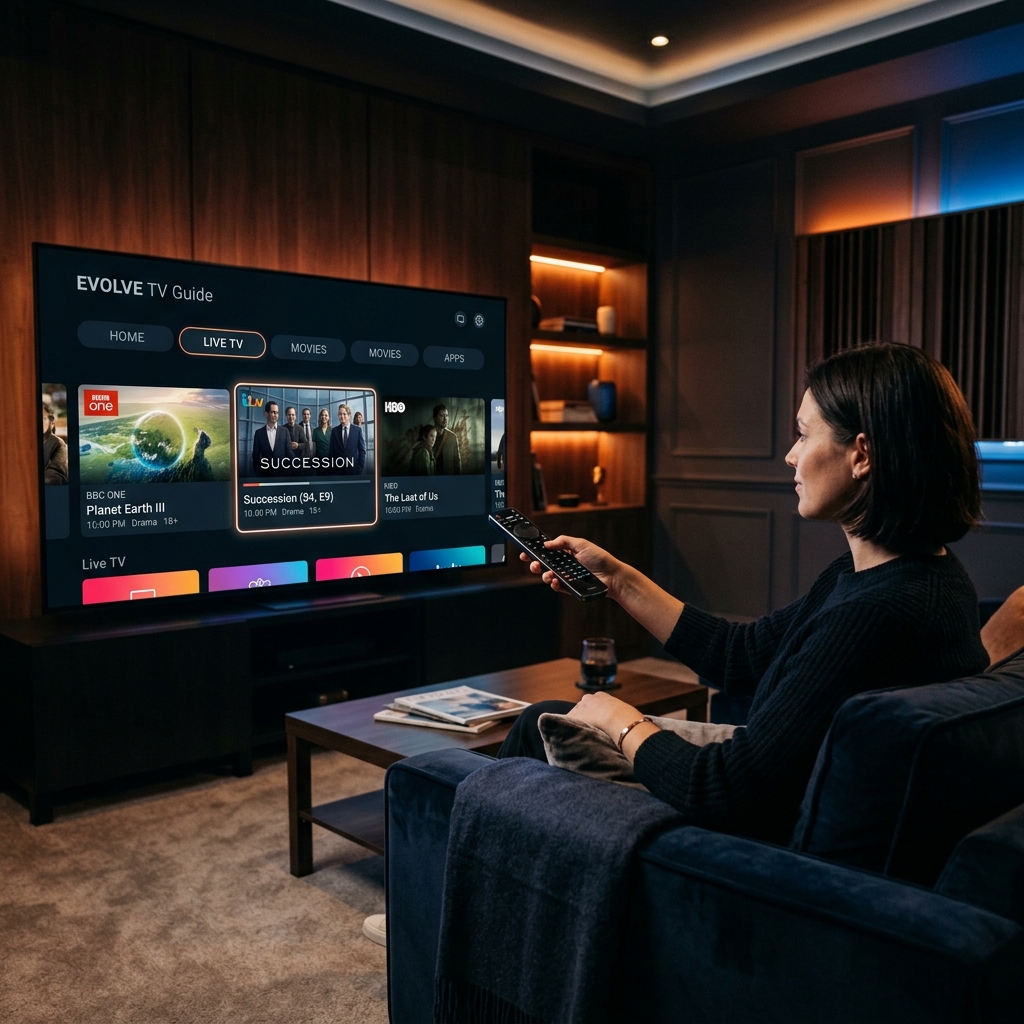
TiviMate Free vs. TiviMate Premium: Feature Comparison
While the free tier of TiviMate provides reliable single-stream viewing, upgrading to TiviMate Premium unlocks essential capabilities for households with multi-connection subscriptions or demanding sports viewing requirements:
| Feature | TiviMate Free | TiviMate Premium | Practical Benefit |
|---|---|---|---|
| Number of Playlists | 1 Playlist only | Unlimited Playlists | Combine multiple server portals or regional providers |
| Multi-View Streaming | Not supported | Up to 9 screens simultaneously | Watch multiple live football matches or racing angles at once |
| Catch-Up & Replay | Disabled | Full Catch-Up support | Rewind broadcast TV up to 7 days on supported channels |
| Scheduled Recording (DVR) | Disabled | Local & Network SMB recording | Record live sporting events and movies to USB or NAS storage |
| Custom Group Management | View only | Hide, reorder & rename categories | Streamline thousands of international channels into your favorites |
| Auto EPG Update Frequency | Manual only | Configurable (every 2, 4, 12, or 24 hrs) | Guarantees TV guide schedules remain accurate and current |
Step 1: Install TiviMate on Your Streaming Device
TiviMate is natively optimized for Android TV and Fire OS architectures, making installation fast through either the official Google Play Store or the Downloader sideloading tool:
- On Google TV / Android TV / Nvidia Shield: Open the Google Play Store TiviMate IPTV Player page, search for TiviMate IPTV Player, and click Install.
- On Amazon Fire TV Stick / Cube: Launch the Downloader app, enter the direct numerical quick code for TiviMate, download the APK, and confirm installation. (Ensure Install Unknown Apps is enabled under Fire TV Developer Options).
- Launch TiviMate from your apps dashboard once installation is complete.
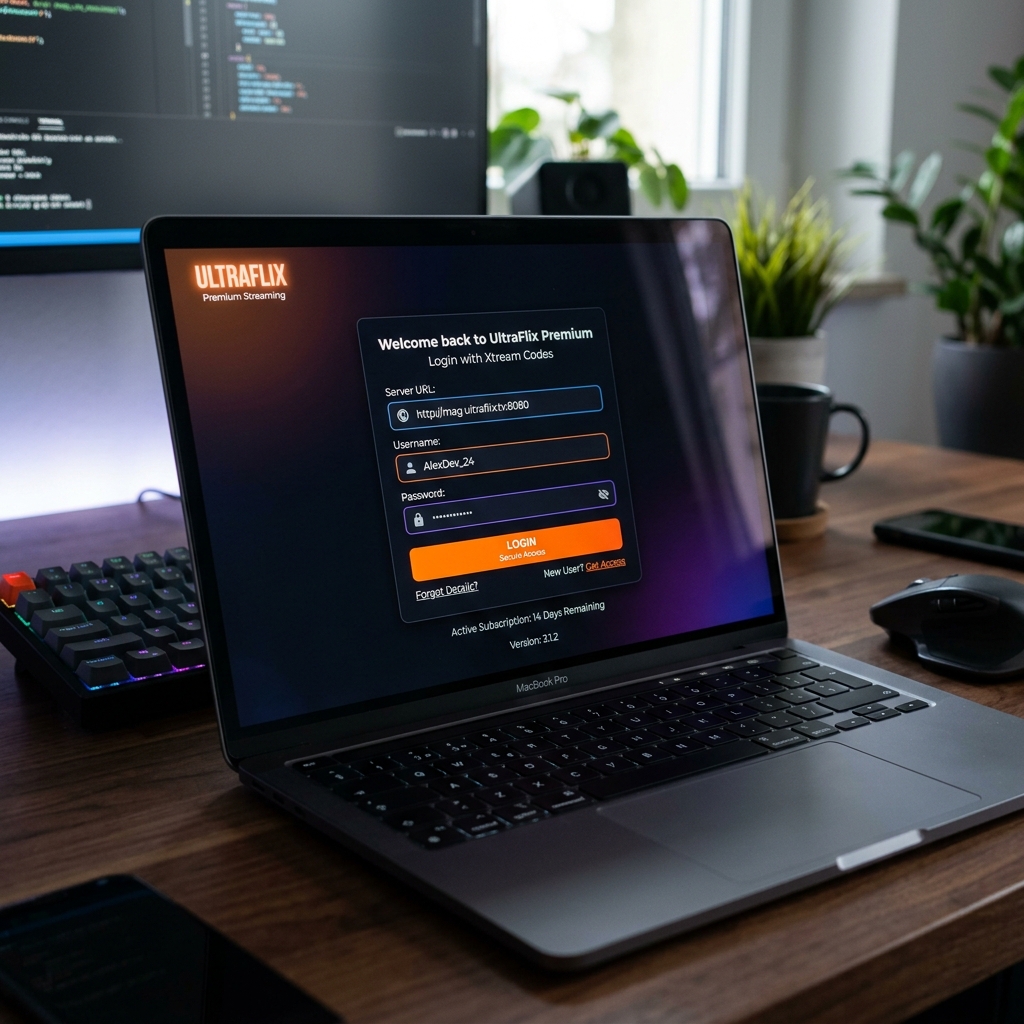
Step 2: Add Your FreeGoTV Playlist via Xtream Codes API
While TiviMate supports traditional M3U playlist files, authenticating via the Xtream Codes API ensures faster loading times and automatic TV guide population without entering long web addresses:
- On the TiviMate welcome screen, select Add Playlist.
- Choose Xtream Codes login as your playlist type.
- Enter the Server Address provided in your FreeGoTV welcome message (e.g.,
http://portal-url:port). - Enter your assigned Username and Password carefully, respecting case sensitivity.
- Check the box labeled Include VOD if you wish to import movies and series alongside live channels.
- Click Next. TiviMate will connect to the server and download channel categories within a few seconds.
- Assign a recognizable playlist name such as FreeGoTV and click Done.
For additional device setup guides or alternative players like IPTV Smarters Pro, browse our detailed device installation and setup tutorials.
Step 3: Configure and Synchronize the Electronic Program Guide (EPG)
An accurate Electronic Program Guide is essential for checking upcoming match kickoffs and prime-time show times. When connecting through FreeGoTV, your primary EPG source is automatically mapped to your channel playlist.
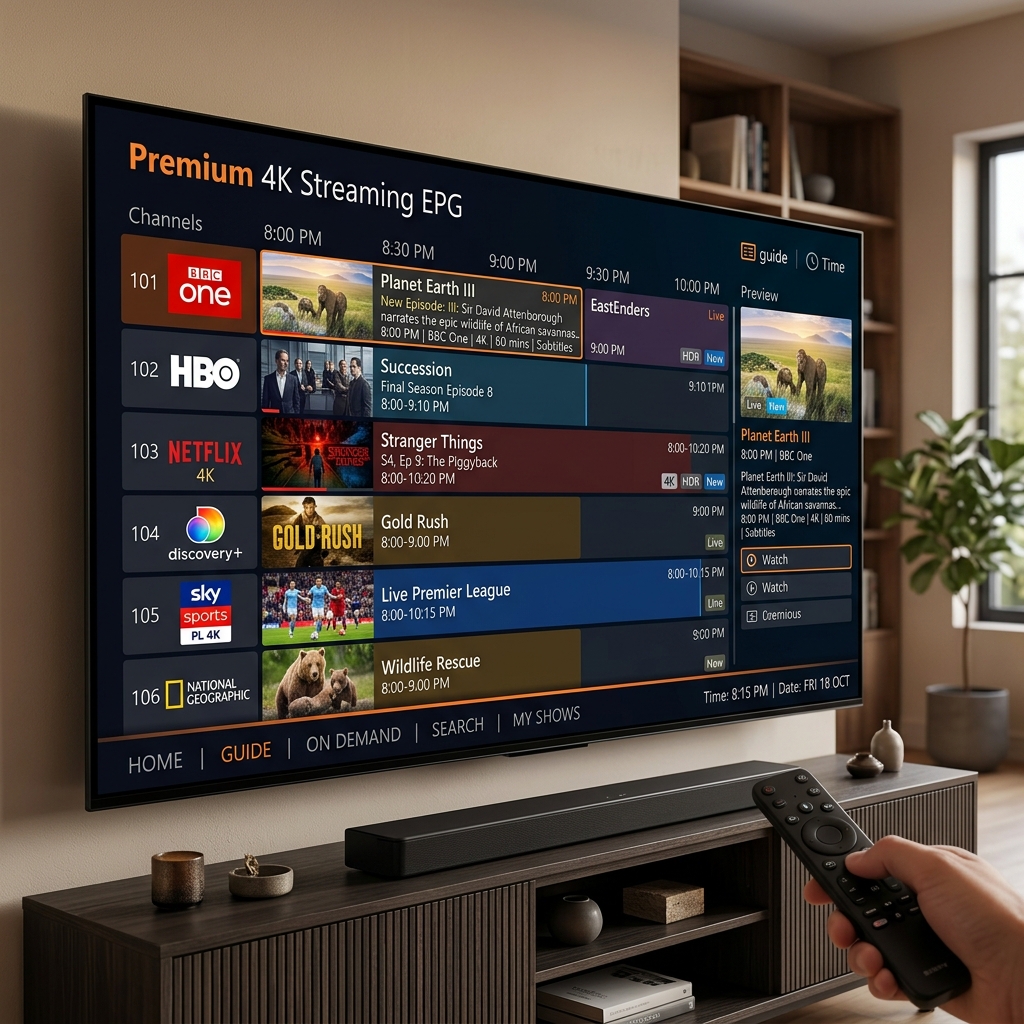
To ensure your TV guide remains accurate without manual refreshing, fine-tune the following recommended EPG settings:
- Update Interval: Go to Settings > EPG > Update on app start and enable this toggle so the guide synchronizes every time you launch TiviMate.
- Days to Keep: Set Past days to keep to 1 or 2 days. This clears obsolete guide entries from internal storage and keeps your streaming stick responsive.
- Timezone Offset: If match start times appear an hour ahead or behind your local clock, navigate to Settings > EPG > EPG Sources > FreeGoTV and adjust the Time offset slider until program hours align with your local time.
Step 4: Optimize Playback Buffer and Video Decoders
To prevent micro-stuttering during high-bitrate 4K sports events, navigate into TiviMate's playback engine settings to tailor video decoding to your hardware:
- Navigate to Settings > Playback.
- Select Buffer size and change it from None to Medium (creates a 3-to-5 second safety cache in memory).
- Verify that Video decoder is set to Hardware to ensure your device's GPU handles high-efficiency video codecs (HEVC/H.265) without thermal throttling.
- Enable Auto frame rate (AFR) if your television supports native refresh rate switching (e.g., 24Hz, 50Hz, 60Hz) for cinematic motion cadence.
For more technical details and software downloads, visit the TiviMate Official Portal.
Frequently Asked Questions
What is the difference between TiviMate Free and TiviMate Premium?
The free version of TiviMate allows one active playlist and basic channel viewing with standard EPG navigation. TiviMate Premium unlocks multi-screen viewing (up to 9 streams simultaneously), scheduled recording, unlimited playlists, catch-up TV, customizable channel groups, and automatic EPG synchronization intervals.
Why is my TiviMate TV guide (EPG) not loading or missing program data?
EPG data issues usually stem from an incorrect timezone offset or outdated cache. To resolve this, open TiviMate Settings > EPG > Past Days to Keep, set it to 1 or 2 days, and click Update EPG. If using FreeGoTV, our Xtream Codes API automatically provides dynamic EPG links that refresh continuously.
Should I use Xtream Codes API or M3U playlist in TiviMate?
Xtream Codes API is strongly recommended over standard M3U links. It authenticates with a simple Server URL, Username, and Password, parses channel categories into clean folders, downloads high-resolution channel logos, and automatically configures EPG source URLs without manual typing.
How do I enable Multi-View to watch multiple channels at once in TiviMate?
While watching any live broadcast in TiviMate Premium, press the Down or Select button on your remote to reveal the player overlay, select the Multi-View icon (grid symbol), and choose Add Screen. You can configure up to 9 concurrent screens with customized audio focus.
Conclusion: Unlock the Ultimate Streaming Experience
Combining the high-speed interface of TiviMate with a reliable IPTV subscription provides an unmatched viewing experience that rivals traditional cable boxes. With crisp 4K broadcasts, structured TV guides, and responsive channel navigation, your entertainment setup is fully optimized for daily viewing.
Ready to upgrade your streaming setup? Explore FreeGoTV subscription plans and experience seamless TiviMate compatibility with 35,000+ live channels and 150,000+ on-demand movies.
Frequently Asked Questions
What is the difference between TiviMate Free and TiviMate Premium?
The free version of TiviMate allows one active playlist and basic channel viewing with standard EPG navigation. TiviMate Premium unlocks multi-screen viewing (up to 9 streams simultaneously), scheduled recording, unlimited playlists, catch-up TV, customizable channel groups, and automatic EPG synchronization intervals.
Why is my TiviMate TV guide (EPG) not loading or missing program data?
EPG data issues usually stem from an incorrect timezone offset or outdated cache. To resolve this, open TiviMate Settings > EPG > Past Days to Keep, set it to 1 or 2 days, and click Update EPG. If using FreeGoTV, our Xtream Codes API automatically provides dynamic EPG links that refresh continuously.
Should I use Xtream Codes API or M3U playlist in TiviMate?
Xtream Codes API is strongly recommended over standard M3U links. It authenticates with a simple Server URL, Username, and Password, parses channel categories into clean folders, downloads high-resolution channel logos, and automatically configures EPG source URLs without manual typing.
How do I enable Multi-View to watch multiple channels at once in TiviMate?
While watching any live broadcast in TiviMate Premium, press the Down or Select button on your remote to reveal the player overlay, select the Multi-View icon (grid symbol), and choose Add Screen. You can configure up to 9 concurrent screens with customized audio focus.
Ready to Experience Premium IPTV Streaming?
Get instant access to 35,000+ live channels, 150,000+ movies, and top sports leagues in 4K with anti-buffering stability.