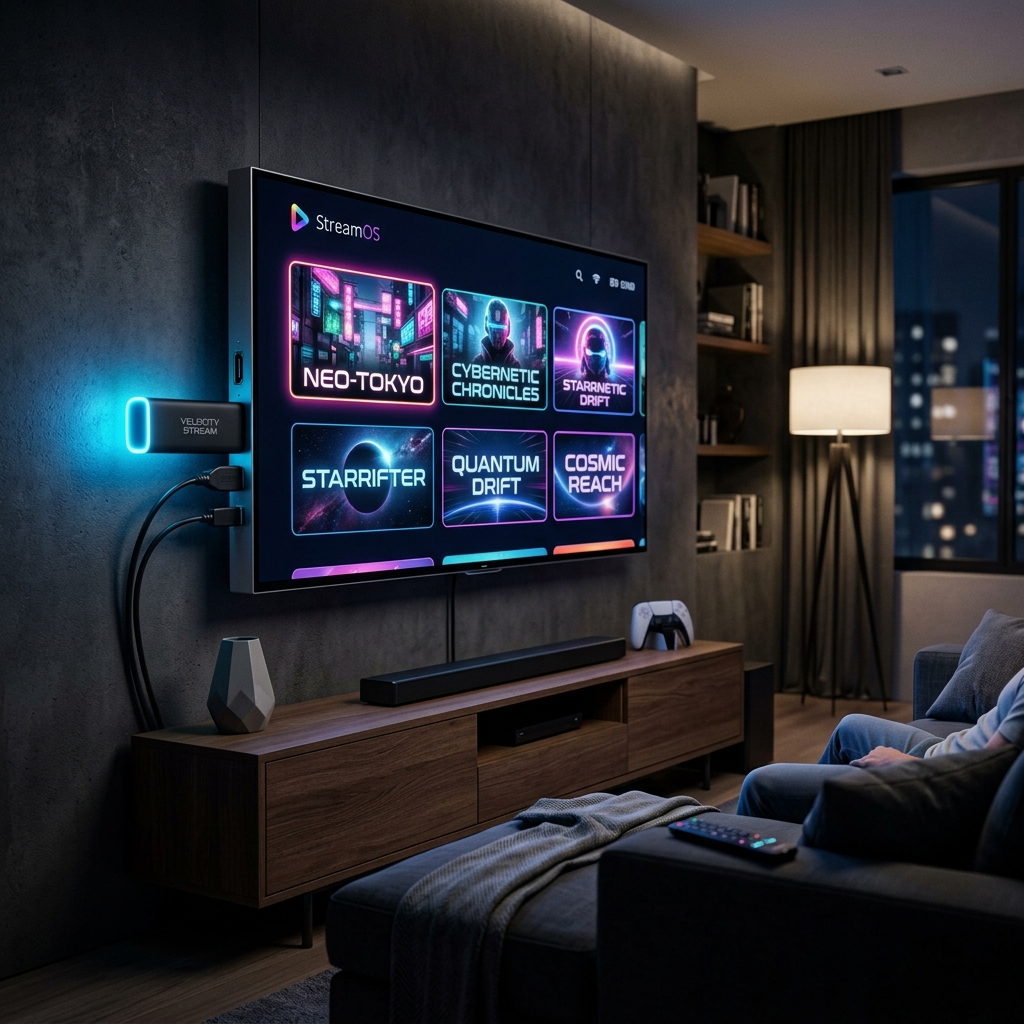
Internet Protocol Television (IPTV) delivers television broadcasts, live sports, and on-demand movies directly across standard internet networks instead of through traditional satellite dishes or coaxial cable infrastructure. With modern services like FreeGoTV, video and audio streams are encoded into digital data packets and routed over IP protocols straight to your streaming device. This architecture eliminates restrictive long-term hardware leases and gives viewers instant access to international television programming on any screen.
Understanding how IPTV works helps you choose the right player applications, configure network bandwidth properly, and resolve streaming bottlenecks before big game days. This guide explains the core technology behind IPTV, breaks down hardware compatibility across major platforms, and provides actionable setup steps to help you enjoy stable, buffer-free entertainment.
How IPTV Technology Delivers Live TV and On-Demand Video
Unlike traditional linear cable television where every channel is broadcast continuously down a physical line regardless of what you watch, IPTV uses a packet-switched network model. When you select a channel on your screen, your IPTV application sends a request to the streaming server, which immediately initiates a dedicated data stream to your IP address.
This dynamic distribution model optimizes bandwidth and allows providers to offer expansive libraries containing tens of thousands of channels alongside on-demand series. The underlying delivery mechanism relies on standardized transport formats such as HLS (HTTP Live Streaming) and MPEG-TS (MPEG Transport Stream), which slice high-definition video into small chunks that can adapt to changing network speeds.
Unicast vs. Multicast Streaming
Video-on-demand (VOD) content uses unicast transmission, establishing a one-to-one connection between the server and your specific client device. This gives you full playback control, enabling pausing, rewinding, and fast-forwarding at will. In contrast, popular live sports broadcasts often distribute load across distributed content delivery networks (CDNs) to ensure minimal latency and synchronized live playback across thousands of concurrent viewers.
Xtream Codes API vs. M3U Playlist Formats
To connect your playback software to a provider's servers, two primary authentication protocols are used throughout the streaming industry:
- Xtream Codes API: Requires three credentials: a Server Portal URL, Username, and Password. This method automatically categorizes channels, imports program posters, and synchronizes the Electronic Program Guide (EPG) without manual file maintenance.
- M3U Playlist URLs: A text-based index file containing direct stream URLs and metadata tags. While compatible with older media players like VLC, large playlists can take longer to reload and do not always update channel names dynamically.
Essential Hardware and Streaming Devices for IPTV
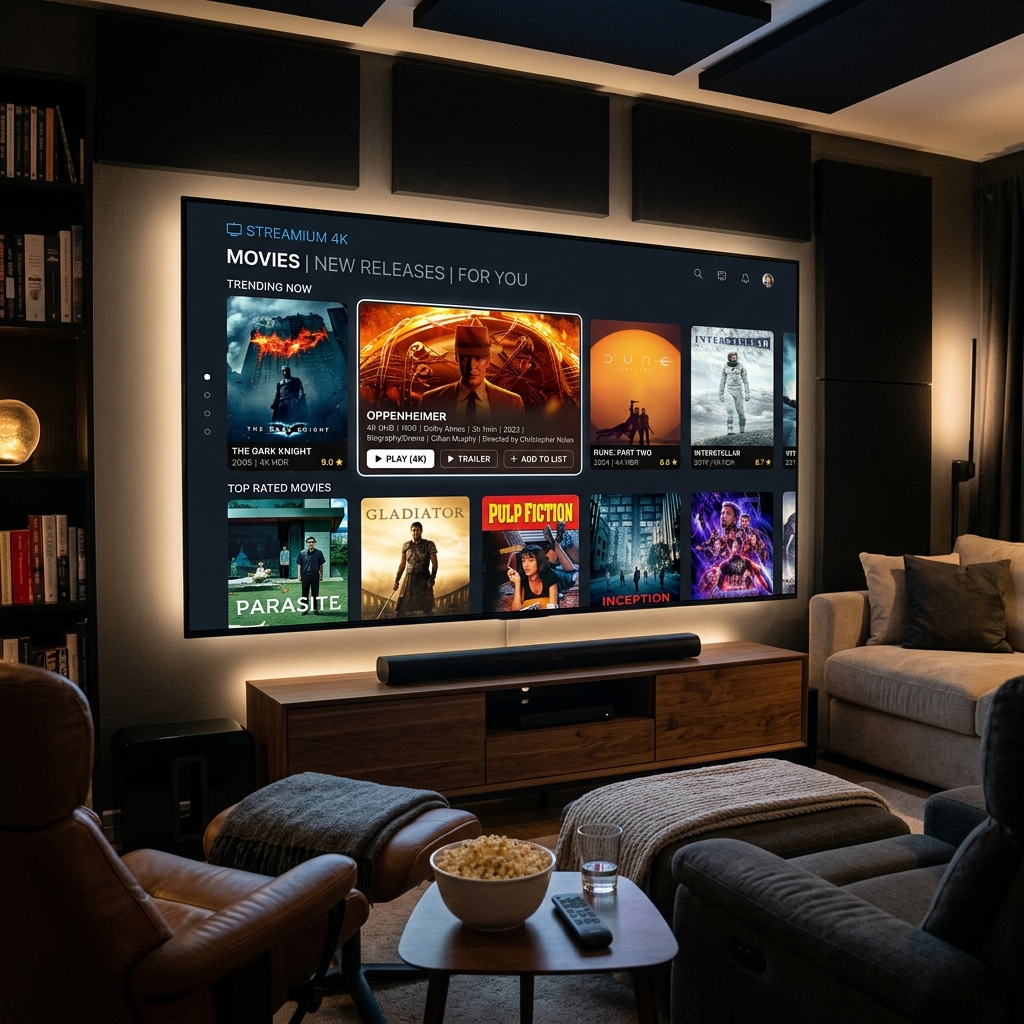
Because IPTV relies on software decoding, the processor and network adapter inside your streaming hardware directly determine channel zapping speed and playback stability. While modern Smart TVs can run basic media players, dedicated streaming dongles and set-top boxes deliver significantly better performance for 4K video feeds and complex EPG data.
| Streaming Device | Recommended Player Apps | Setup Method | Ideal Video Quality | Best Use Case |
|---|---|---|---|---|
| Amazon Fire TV Stick 4K | TiviMate, IPTV Smarters Pro | Downloader app (Sideloading) | 4K Ultra HD @ 60 fps | Best overall balance of price, performance, and portability |
| Android TV / Google TV | TiviMate, Sparkle TV, XCIPTV | Google Play Store direct install | 4K Ultra HD with HDR / Dolby Vision | Dedicated living room theaters and advanced EPG users |
| Apple TV 4K (tvOS) | iSTB, IPTV Smarters Pro, UHF | Apple App Store direct install | 4K Ultra HD @ 60 fps | Households within the Apple ecosystem seeking ultra-fast UI |
| Samsung & LG Smart TVs | IBO Player, IPTV Smarters Pro | Tizen Store / LG Content Store | Full HD to 4K Ultra HD | Convenient bedroom setup without extra cables or adapters |
| Windows PC / macOS | IPTV Smarters Pro, VLC Media Player | Direct software download | 1080p Full HD to 4K Ultra HD | Desktop workstations and office environments |
Step-by-Step IPTV Setup Instructions by Platform
Setting up your IPTV streaming connection takes only a few minutes when following the correct platform workflow. Regardless of your chosen device, ensure you have received your server portal address, username, and password before starting the installation.
Configuring Amazon Fire TV Stick
- Navigate to the Find > Search tool on your Firestick home screen and search for the Downloader app. Download and open the application.
- Open Settings > My Fire TV > Developer Options. Enable Install Unknown Apps for Downloader.
- Launch Downloader, enter the direct download code for your chosen IPTV player (such as IPTV Smarters or TiviMate), and click Go.
- Install the application, open it, select Login with Xtream Codes API, and enter your account credentials to begin streaming.
Configuring Samsung and LG Smart TVs
- Launch the Samsung Smart Hub or LG Content Store using your TV remote.
- Search for an approved player application such as IBO Player or IPTV Smarters Pro and install it.
- Open the application. Note the Device MAC Address and Device Key displayed on your screen.
- Visit the application management portal on your computer or smartphone, enter your TV's MAC address, and upload your provider credentials or playlist URL.
- Restart the application on your Smart TV to load your channel categories.
For more platform walkthroughs, including step-by-step guides for iOS, Android tablets, and MAG boxes, consult the official FreeGoTV installation tutorials.
Network Optimization: How to Prevent Buffering and Latency
Buffering during live streaming is almost always caused by local network interference, buffer underruns, or Internet Service Provider (ISP) traffic shaping rather than server capacity. Applying a few technical adjustments ensures seamless high-bitrate streaming during peak viewing hours.
1. Prefer Wired Ethernet Over 2.4 GHz Wi-Fi
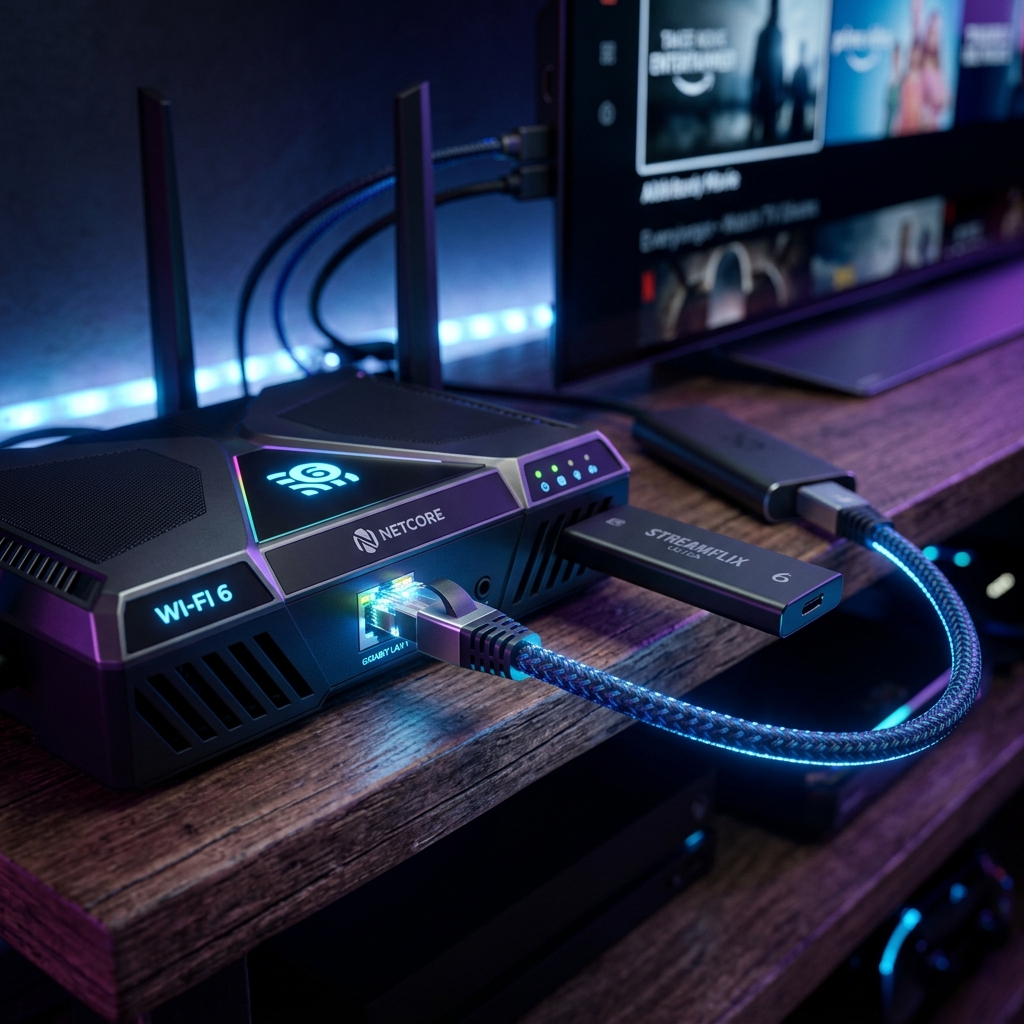
While 2.4 GHz Wi-Fi offers long physical range, it suffers from heavy congestion caused by household appliances, Bluetooth peripherals, and neighboring routers. According to the FCC Broadband Speed Guide, consistent throughput and low latency are critical for high-definition video distribution. Whenever possible, connect your streaming box via an Ethernet cable or connect to the 5 GHz Wi-Fi band within direct line of sight of your router.
2. Adjust Player Buffer Sizes
Advanced IPTV applications allow users to customize buffer allocation. If you experience occasional frame drops during live sports events, navigate into your player settings (such as Player > Advanced in TiviMate) and increase the buffer duration from "None" to "Medium" or "Large." This allocates a few seconds of preloaded video data in your device memory, smoothing over minor packet arrival delays.
3. Switch to Public High-Performance DNS Servers
Default ISP DNS resolvers can occasionally delay stream lookup times or redirect traffic through congested routing nodes. Updating the DNS settings on your streaming device or home gateway to public resolvers such as Cloudflare (1.1.1.1) or Google (8.8.8.8) can reduce lookup latency and prevent connection timeouts.
4. Test Independent Playback Software
If a specific channel stutters on your primary device, test the stream using an open-source media framework such as the VideoLAN VLC media player on your laptop or mobile phone. Testing on a separate platform immediately identifies whether the issue stems from hardware codec decoding limitations or your local network connection.
Conclusion: Choosing the Right IPTV Configuration
Transitioning to IPTV streaming provides unprecedented entertainment freedom, eliminating bloated cable bundles and restrictive hardware rental fees. By pairing a capable hardware platform like the Fire TV Stick 4K or Apple TV with an optimized local network connection, you can enjoy crisp 4K broadcasts and responsive channel navigation every day.
Ready to upgrade your home entertainment setup? Explore FreeGoTV subscription plans and discover a reliable streaming experience tailored to your family's favorite channels, sports, and movies.
Frequently Asked Questions
What is the difference between an M3U URL and Xtream Codes API?
An M3U URL is a plain-text playlist link containing direct stream addresses for every channel and movie. The Xtream Codes API is a structured authentication format using a Server Portal URL, Username, and Password. Xtream Codes is widely preferred because it categorizes live TV, movies, and series cleanly while updating the Electronic Program Guide (EPG) automatically.
What internet speed is required for buffer-free 4K IPTV streaming?
For standard definition and 720p HD streams, a steady 10 to 15 Mbps connection is sufficient. For 1080p Full HD at 60 fps, 25 Mbps is recommended. For uninterrupted 4K Ultra HD live sports and high-bitrate video-on-demand, an internet speed of 30 to 50 Mbps with low ping and jitter delivers the best experience.
How many devices can stream simultaneously with FreeGoTV?
FreeGoTV offers multi-connection plans ranging from 1 up to 5 concurrent screens. A single-device account allows one active stream at a time, whereas multi-device subscriptions allow family members in different rooms to watch different live channels or on-demand titles simultaneously.
Can I install an IPTV player directly on my Smart TV without an external stick?
Yes. Most Samsung Smart TVs running Tizen OS and LG Smart TVs running webOS have compatible IPTV player applications in their official content stores, including IBO Player and IPTV Smarters Pro. However, dedicated streaming devices like an Amazon Fire TV Stick 4K or Apple TV generally offer faster navigation, regular application updates, and superior codec handling.
Ready to Experience Premium IPTV Streaming?
Get instant access to 35,000+ live channels, 150,000+ movies, and top sports leagues in 4K with anti-buffering stability.