To stream IPTV on an Amazon Fire TV Stick, you install a dedicated player application such as IPTV Smarters Pro or TiviMate via the official Downloader utility and log in using your service credentials. With a premium provider like FreeGoTV, this process takes under five minutes and gives you instant access to tens of thousands of live channels, sports broadcasts, and on-demand movies in high-definition and 4K resolution. You do not need any technical background or additional equipment beyond your Fire TV device and a steady internet connection.
The Amazon Firestick is one of the most widely used streaming dongles due to its hardware video decoding capabilities, responsive navigation, and portable HDMI form factor. This guide walks you through preparing Fire OS, sideloading your player software, and configuring playback settings for reliable, stutter-free viewing.
Step 1: Prepare Your Firestick for App Installation
Because third-party IPTV media players are distributed as standalone Android application packages (APKs), you first need to install the sideloading utility named Downloader from the Amazon Appstore. Once installed, grant it permission to install applications from verified sources.
- From your Firestick home screen, navigate to Find and select Search.
- Type Downloader using the on-screen keyboard, select the orange Downloader icon from the search results, and click Download or Get.
- Go to your Firestick Settings (the gear icon on the far right) and open My Fire TV.
- Select Developer Options and locate Install Unknown Apps (or Apps from Unknown Sources on older Fire OS builds).
- Click on Downloader to switch its status to ON.
If you do not see Developer Options in your menu, your device has received a recent Fire OS update that hides developer settings by default. Consult the official Amazon Fire TV Device Support guide or follow the quick unhiding instructions in our FAQ section below.
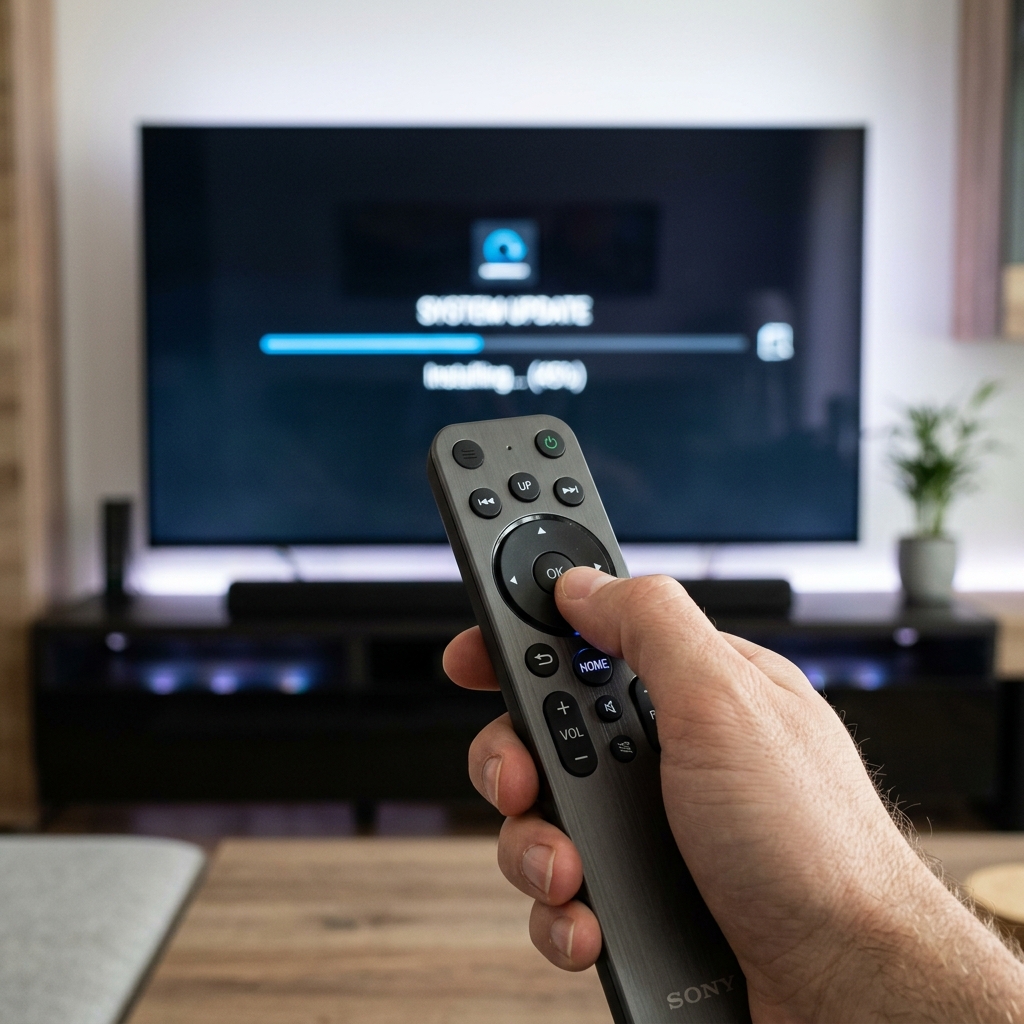
Step 2: Choose and Install an IPTV Player App
An IPTV player acts as the interface that decodes live television feeds, manages your channel categories, and organizes electronic program guide (EPG) schedules. Choosing the right player ensures smooth channel switching and simple remote navigation.
| Player Application | Best Feature | Interface Style | Downloader Code | Recommended For |
|---|---|---|---|---|
| IPTV Smarters Pro | Integrated multi-screen and VOD layout | Modern tile dashboard | Direct APK search | Beginners wanting simple plug-and-play viewing |
| TiviMate IPTV Player | Fast channel zapping and cable-like EPG grid | Traditional TV guide layout | Direct numerical code | Power users seeking a premium living-room experience |
| XCIPTV Player | Built-in ExoPlayer and VLC backup decoders | Customizable classic menu | Standard APK download | Users prioritizing playback compatibility across codecs |
| OTT Navigator | Deep stream buffering and picture-in-picture | Compact data-rich list | Companion app sideload | Advanced users tuning performance on older sticks |
Installing Your Chosen Player via Downloader
- Launch the Downloader application from your app list and permit it to access storage files.
- Click the URL input box in the center of the screen to open the virtual keyboard.
- Enter the direct download link or quick numerical code provided in your welcome email or setup instructions.
- Click Go and wait for the APK file to download onto your device storage.
- Click Install on the system prompt, followed by Done once installation finishes. You can safely choose Delete to remove the temporary APK installer and free up device memory.
Step 3: Connect Your FreeGoTV Credentials
Once your player application opens, you will be prompted to choose an authentication method. While M3U playlist URLs are supported, connecting via the Xtream Codes API is far faster and avoids typing lengthy web links with your Firestick remote.
- Open your installed player app and select Login with Xtream Codes API (sometimes labeled Add User or Xtream-Codes).
- In the Any Name field, enter an identifier such as FreeGoTV.
- Enter the exact Username and Password sent to your email or WhatsApp upon subscription activation.
- Enter the Server Portal URL exactly as provided, including the protocol and port number.
- Click Add User or Login. The player will download live channel playlists, movie posters, and TV guide data automatically.
If you need platform-specific visual walkthroughs for other devices such as Apple TV, Android boxes, or Smart TVs, explore our complete FreeGoTV installation tutorials.
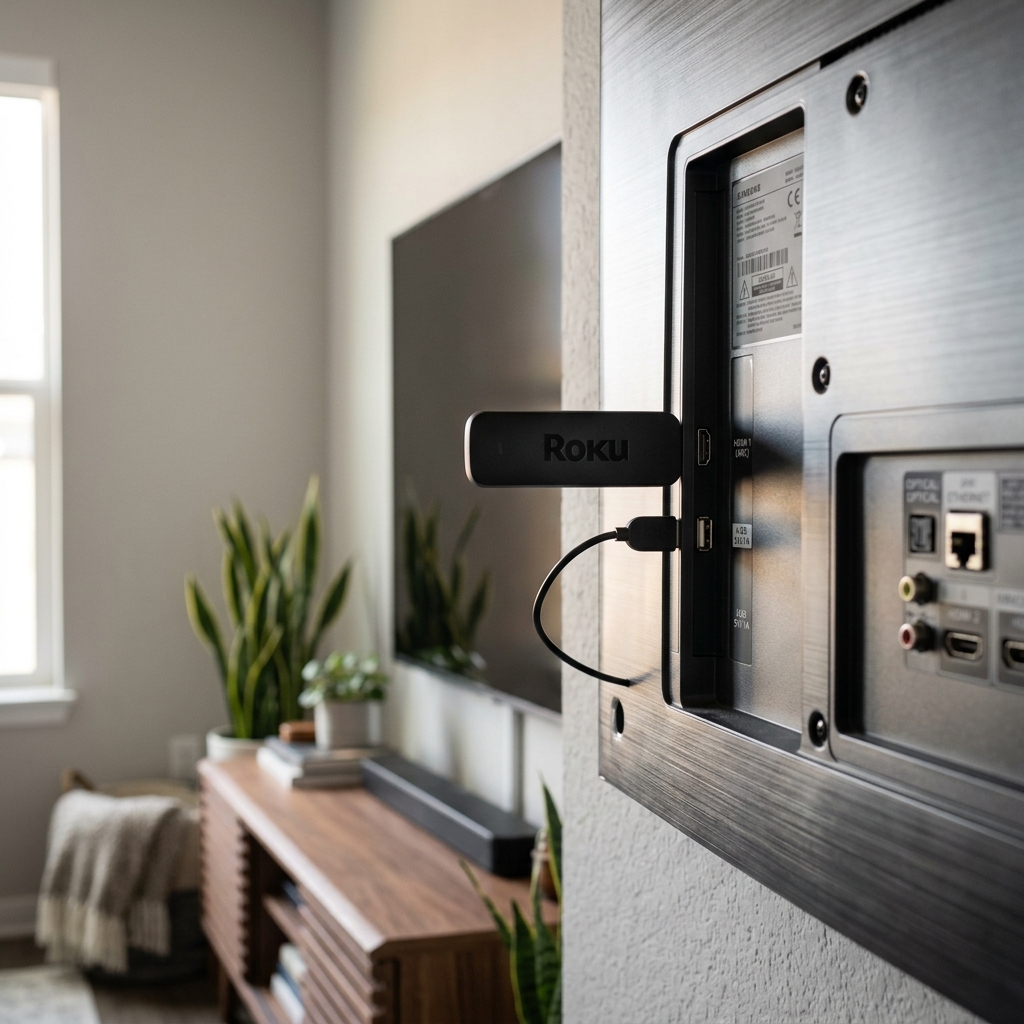
Optimizing Firestick Performance for Buffer-Free 4K Streaming
Because the Amazon Firestick runs on a compact thermal profile with limited RAM, applying a few performance optimizations prevents frame stutter during high-bandwidth events:
- Connect to 5 GHz Wi-Fi: Always connect your Fire TV Stick to your router's 5 GHz band rather than 2.4 GHz to minimize interference from surrounding household appliances.
- Use the HDMI Extender: The short flexible HDMI extender included in the Firestick box moves the antenna away from the television chassis, improving signal reception significantly.
- Clear App Cache Regularly: From Settings > Applications > Manage Installed Applications, clear the cache of background streaming apps once a month to free up active memory.
- Adjust Player Buffer Size: In player settings such as TiviMate IPTV Player, increase buffer duration to "Medium" or "Large" to prevent brief network drops from halting live playback.
Conclusion: Enjoy Streamlined Entertainment on Firestick
Setting up IPTV on an Amazon Fire TV Stick transforms your television into an all-in-one entertainment powerhouse. With high-efficiency video decoding, customizable TV guides, and responsive remote controls, enjoying live events and on-demand titles has never been more straightforward.
Ready to get started? Explore FreeGoTV subscription plans to pick the ideal multi-screen package and unlock buffer-free 4K streaming today.
Frequently Asked Questions
Why are Developer Options hidden on my Firestick?
Recent Fire OS updates hide Developer Options by default for safety. To restore the menu, go to Settings > My Fire TV > About, highlight your device name, and click the Select button on your remote 7 times until you see a message saying you are now a developer.
Should I use Xtream Codes API or an M3U playlist URL?
Xtream Codes API is strongly recommended for Firestick users. It organizes content into clean categories for live channels, movies, and series while updating the TV guide automatically, whereas manual M3U links can be cumbersome to type on a TV remote.
What internet speed do I need for 4K streaming on Firestick?
A download speed of at least 15 Mbps is recommended for standard high-definition channels, while 30 to 50 Mbps is ideal for buffer-free 4K live sports and video-on-demand content.
Can I use one FreeGoTV subscription across multiple Firesticks?
Yes, FreeGoTV offers multi-device subscription plans supporting up to 5 concurrent connections, allowing family members to stream different channels simultaneously on separate screens.
Ready to Experience Premium IPTV Streaming?
Get instant access to 35,000+ live channels, 150,000+ movies, and top sports leagues in 4K with anti-buffering stability.