To fix IPTV buffering and freezing, identify whether the slowdown originates from local Wi-Fi congestion, player buffer limits, or Internet Service Provider (ISP) bandwidth throttling. With an optimized connection and a reliable provider like FreeGoTV, you can eliminate streaming stutter and watch live sports and 4K movies smoothly without unexpected pauses. Most buffering issues can be permanently resolved in under ten minutes by switching to 5 GHz or Ethernet, updating DNS resolvers, and configuring player cache settings.
Streaming video over Internet Protocol requires continuous data packet delivery with minimal latency. When data packets arrive out of sequence or slower than your player's playback rate, the video pauses while the buffer refills. This guide provides a systematic troubleshooting framework to diagnose your connection, bypass provider throttling, and configure your hardware for flawless playback.

Quick IPTV Buffering Diagnostic Matrix
Before changing multiple hardware settings, match your streaming symptoms to the most probable root cause using the diagnostic table below:
| Symptom | Likely Root Cause | Primary Culprit | Recommended Fix |
|---|---|---|---|
| Freezes only during prime-time live sports | ISP protocol throttling / traffic shaping | Internet Service Provider | Activate a secure VPN or switch to an encrypted port |
| Pauses for 2–3 seconds every minute | Local Wi-Fi packet loss or low buffer | Router / Wi-Fi band | Switch to 5 GHz Wi-Fi, Ethernet, or set buffer to Medium |
| Audio continues but video screen freezes | Hardware decoder overload / codec mismatch | Streaming Device / Player | Switch decoder from Hardware to Software in player settings |
| Buffering across all channels at all hours | Insufficient raw bandwidth or high ping | Local Network / Broadband | Reboot router, clear device cache, and run a speed test |
| Channel loop-repeats the same 5 seconds | MPEG-TS transport segment drop | Server Routing / DNS | Update device DNS to Cloudflare (1.1.1.1) or Google (8.8.8.8) |
Step 1: Eliminate Local Network Interference
Over half of all streaming interruptions stem from home Wi-Fi bottlenecks rather than external servers. The 2.4 GHz wireless frequency is crowded with baby monitors, microwave ovens, and Bluetooth devices, causing packet drops that linear video streams cannot tolerate.
- Switch to the 5 GHz Band: Modern dual-band routers broadcast two networks. Connect your Firestick, Smart TV, or Android box exclusively to the 5 GHz Wi-Fi SSID for quadrupled wireless bandwidth and lower interference.
- Use a Direct Ethernet Connection: A physical Cat6 Ethernet cable eliminates radio frequency fluctuations entirely. If your streaming stick lacks an Ethernet jack, plug-and-play USB Ethernet adapters are inexpensive and dramatically stabilize live sports feeds.
- Perform a Ping & Jitter Test: Open a browser on your network and run a test on Speedtest by Ookla. Look closely at your Jitter reading; if jitter exceeds 20 ms, your router is dropping packets during data transmission.
Step 2: Bypass ISP Bandwidth Throttling with a VPN
Many major telecom providers actively monitor incoming streaming ports. During high-profile Champions League matches, NFL Sundays, or pay-per-view fight cards, automated ISP traffic-management systems throttle high-bandwidth video packets to prevent neighborhood network saturation.

When you activate a virtual private network, your streaming data is encrypted inside a secure tunnel. Because your provider can only see randomized encrypted traffic, their throttling algorithms cannot detect or slow down your IPTV feed. Pair your connection with high-speed VPN protocols such as WireGuard to maintain maximum throughput with zero latency penalty.
Step 3: Fine-Tune Player Cache and Decoder Settings
Your media playback software plays a pivotal role in smoothing out micro-delays in packet delivery. Whether you use TiviMate, IPTV Smarters Pro, or XCIPTV, configuring the internal buffer and video decoder improves stability immediately.
- Increase Buffer Size: Open your player settings, find the Playback or Advanced tab, and change the buffer size from None or Small to Medium (3–5 seconds). This creates a safety reservoir in RAM that absorbs brief network spikes without pausing video output.
- Toggle Video Hardware Acceleration: If high-bitrate 4K streams stutter on older hardware, toggle your player's video decoder between Hardware (HW) and Software (SW). Some chipsets decode HEVC/H.265 content more smoothly when relying on dedicated hardware chips.
- Clear Application Cache: Over time, cached channel logos and EPG data can clog your streaming box's internal memory. Clear the app cache monthly from your device application settings.
If you need exact device instructions for your specific TV or box, check out our comprehensive FreeGoTV installation tutorials.
Step 4: Update Your DNS Resolvers
Default DNS servers provided by home internet companies are notoriously slow to update routing tables and can throttle lookups to international content delivery networks. Switching your DNS to independent high-speed servers often resolves persistent connection dropouts.
Access your streaming device network settings or home gateway configuration and update your DNS addresses to Cloudflare 1.1.1.1 DNS (Primary: 1.1.1.1, Secondary: 1.0.0.1) or Google DNS (8.8.8.8 and 8.8.4.4). This accelerates server handshakes and routes your streams across faster network paths.
Step 5: The Value of Premium AntiFreeze Server Architecture
If local network tweaks do not resolve your buffering, the issue lies on the server side. Low-tier IPTV services oversell capacity, crowding thousands of viewers onto single unmanaged servers that collapse under game-day demand.
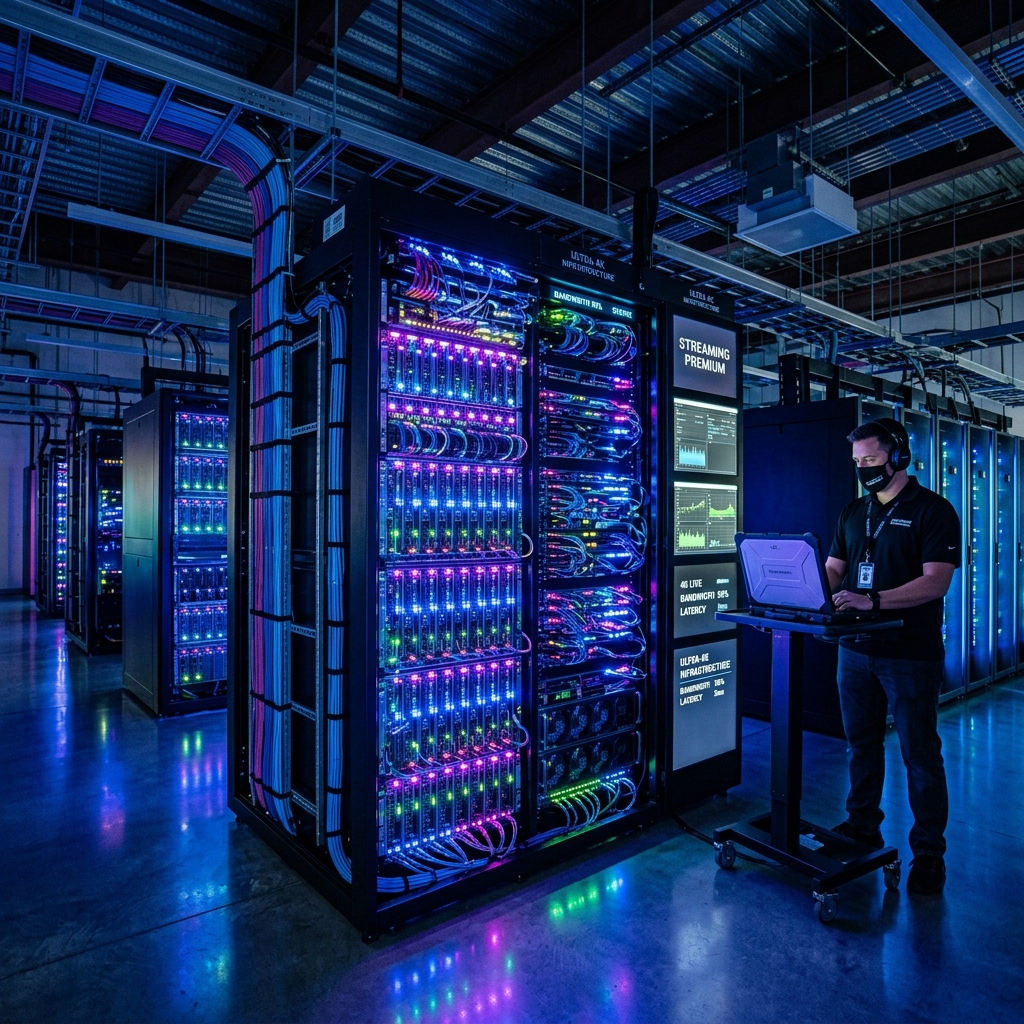
In contrast, FreeGoTV utilizes load-balanced server clusters integrated with proprietary AntiFreeze technology. When sudden surges in sports viewership occur, incoming traffic automatically balances across redundant nodes worldwide to maintain consistent 60 fps delivery with 99.99% uptime reliability.
Frequently Asked Questions
Why does my IPTV only buffer during live sports matches?
Targeted ISP bandwidth throttling is the most frequent cause of buffering during live sports. Many internet providers detect high-bandwidth UDP streaming during major football or UFC broadcasts and throttle connection speeds. Enabling a reliable VPN or using FreeGoTV AntiFreeze servers encrypts your traffic so your ISP cannot single out your stream.
What is the best buffer size setting in TiviMate or IPTV Smarters?
Setting your buffer size to Medium (around 3 to 5 seconds of preloaded video) delivers the best balance between fast channel zapping and playback stability. Setting buffer size to Very Large can cause unnecessary audio-video sync delays, while None leaves your stream vulnerable to micro-packet drops.
Does using a VPN always improve IPTV streaming speeds?
A VPN improves streaming speed when your ISP actively throttles streaming protocols or uses congested routing peering points. However, if your home internet bandwidth is already below 15 Mbps, encryption overhead from a VPN can slightly reduce speeds. Always connect to a nearby VPN server location for optimal results.
How much internet speed is needed to eliminate IPTV stuttering?
For stable 1080p Full HD streaming at 60 frames per second, a steady connection of 20 to 25 Mbps is recommended. For 4K Ultra HD broadcasts, you need a consistent throughput of 35 to 50 Mbps with minimal ping jitter and zero packet loss.
Conclusion: Enjoy Crisp, Uninterrupted 4K Streaming
Eliminating IPTV buffering does not require expensive network overhauls. By switching to 5 GHz Wi-Fi or Ethernet, tuning player buffer sizes, and deploying a secure VPN against ISP throttling, you can enjoy uninterrupted high-definition live television every day.
Tired of unreliable streams during critical game moments? Discover FreeGoTV subscription plans equipped with AntiFreeze server balancing and upgrade to a premium, buffer-free viewing experience.
Frequently Asked Questions
Why does my IPTV only buffer during live sports matches?
Targeted ISP bandwidth throttling is the most frequent cause of buffering during live sports. Many internet providers detect high-bandwidth UDP streaming during major football or UFC broadcasts and throttle connection speeds. Enabling a reliable VPN or using FreeGoTV AntiFreeze servers encrypts your traffic so your ISP cannot single out your stream.
What is the best buffer size setting in TiviMate or IPTV Smarters?
Setting your buffer size to Medium (around 3 to 5 seconds of preloaded video) delivers the best balance between fast channel zapping and playback stability. Setting buffer size to Very Large can cause unnecessary audio-video sync delays, while None leaves your stream vulnerable to micro-packet drops.
Does using a VPN always improve IPTV streaming speeds?
A VPN improves streaming speed when your ISP actively throttles streaming protocols or uses congested routing peering points. However, if your home internet bandwidth is already below 15 Mbps, encryption overhead from a VPN can slightly reduce speeds. Always connect to a nearby VPN server location for optimal results.
How much internet speed is needed to eliminate IPTV stuttering?
For stable 1080p Full HD streaming at 60 frames per second, a steady connection of 20 to 25 Mbps is recommended. For 4K Ultra HD broadcasts, you need a consistent throughput of 35 to 50 Mbps with minimal ping jitter and zero packet loss.
Ready to Experience Premium IPTV Streaming?
Get instant access to 35,000+ live channels, 150,000+ movies, and top sports leagues in 4K with anti-buffering stability.